Refine demos
A real fix, start to finish. This upscale came back with crease lines — tiling seams from insufficient overlap. Instead of re-rendering the whole clip, we box-selected a mask over the artifact in the Refine workspace, generated a patch for just that region, and blended it back. Find the crease, then watch it disappear.
Find the crease. Watch it disappear.
Left is the raw upscale with a crease-line seam; right is the composite after the masked region was reprocessed and blended back. The seam is faint by design — hit “Find the crease” in the toolbar (or follow the marker) and it jumps you straight to it.
Original vs. finished clip
The complete result: 4× upscale plus the region fix, against the 540p source it started from.
Inside the app
One box. One patch. No re-render.
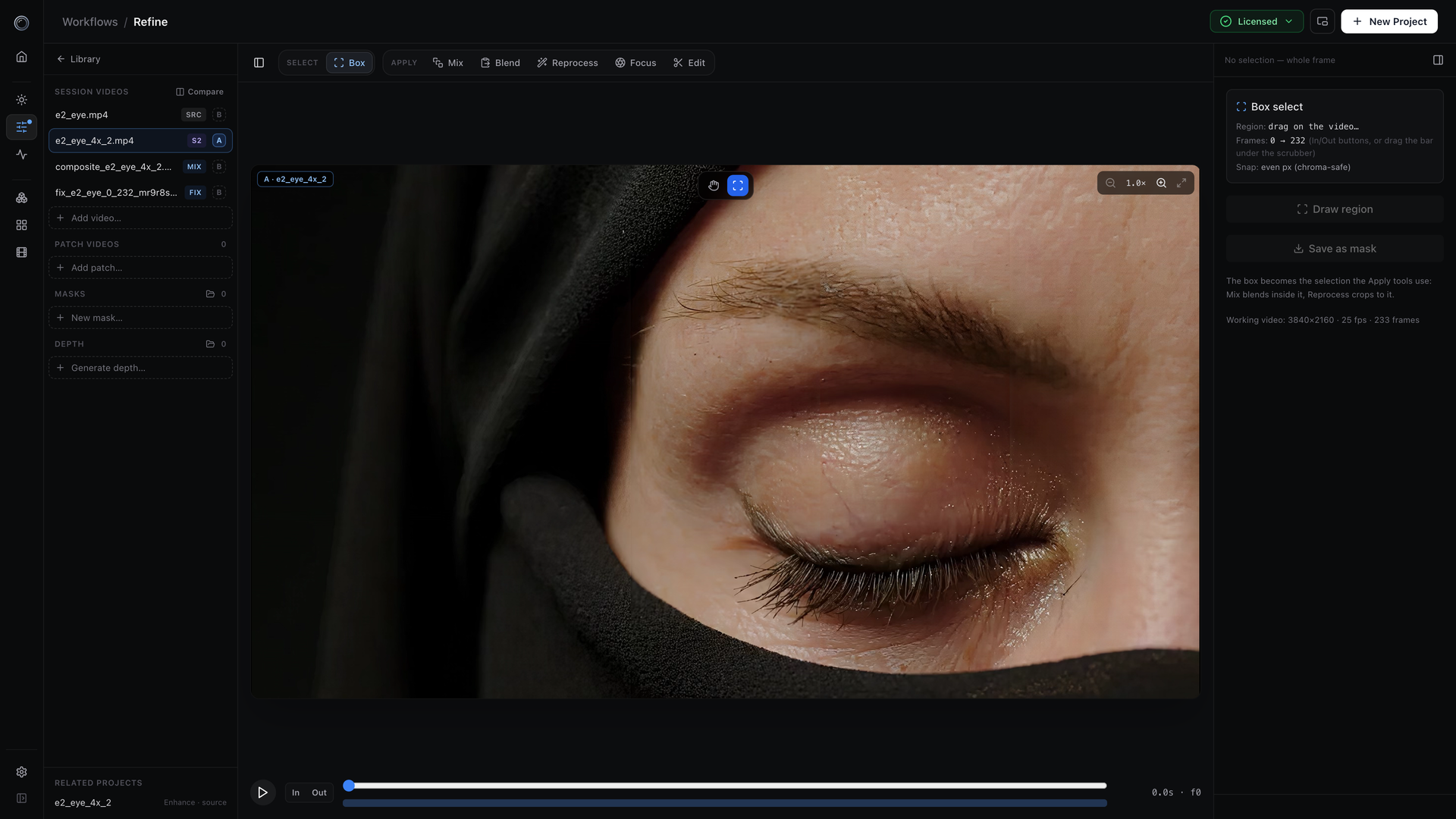
This is the actual session behind the clips above: the upscaled video open in the Refine workspace with the Box-select tool active. Draw a region over the artifact, save it as a mask, reprocess just that crop with a fresh pipeline, and Mix blends the patch back — mask-gated, tracked across every frame. The same flow works with click-to-segment object masks from the Segment model.
Rest of the suite
Try it on your own footage.
The free trial runs every model locally — full videos, watermarked, no credit card.